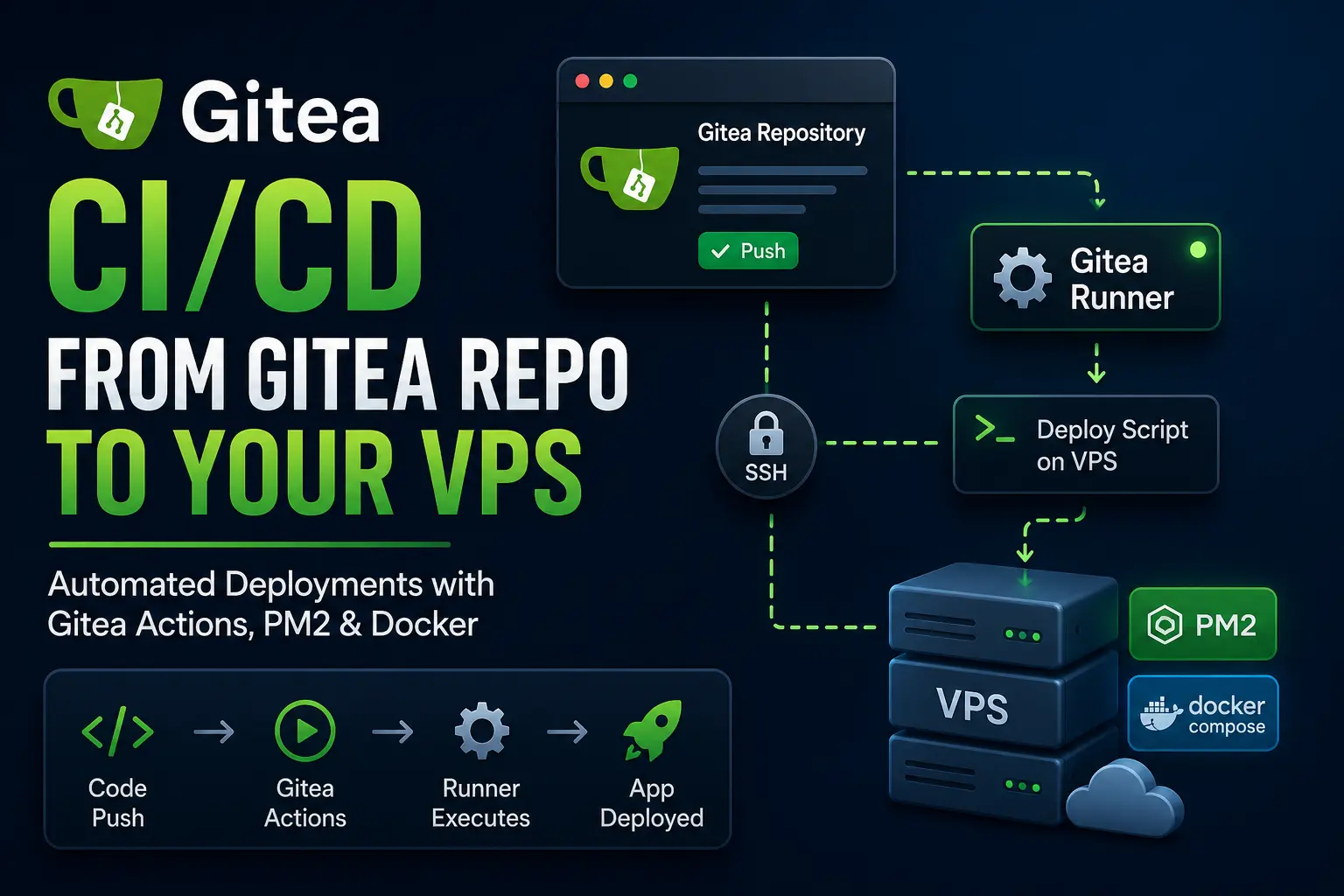
I recently needed to auto-deploy a private repo from my self-hosted Gitea instance to a VPS.
In my head, it sounded simple:
Push code to the Gitea repo, let something run on the VPS, pull the latest changes, install dependencies, and restart the app.
Simple, right?
Well, not quite.
I hit a few annoying issues along the way: Gitea Actions stuck on “waiting”, runner labels, SSH ports, access tokens, .env files, Docker socket permissions, and even pm2: command not found after everything else was already working.
So this post is the cleaned-up version of what finally worked.
The goal is simple:
Push to Gitea repo
→ Gitea Action runs
→ Gitea runner picks up the job
→ VPS runs a deploy script
→ latest code is pulled
→ dependencies are installed
→ PM2 or Docker restarts the app
This guide is for people who already have a VPS and a self-hosted Gitea instance, and want a practical CI/CD workflow without manually SSHing into the server every time.
Gitea Actions is Gitea’s built-in CI/CD system. It uses workflow files, much like GitHub Actions, and those jobs are executed by a runner. The official docs describe it as a built-in CI/CD solution for building, testing, and deploying code, with GitHub Actions-compatible workflow syntax: https://docs.gitea.com/usage/actions/overview
What We Are Building
We are building a deployment workflow like this:
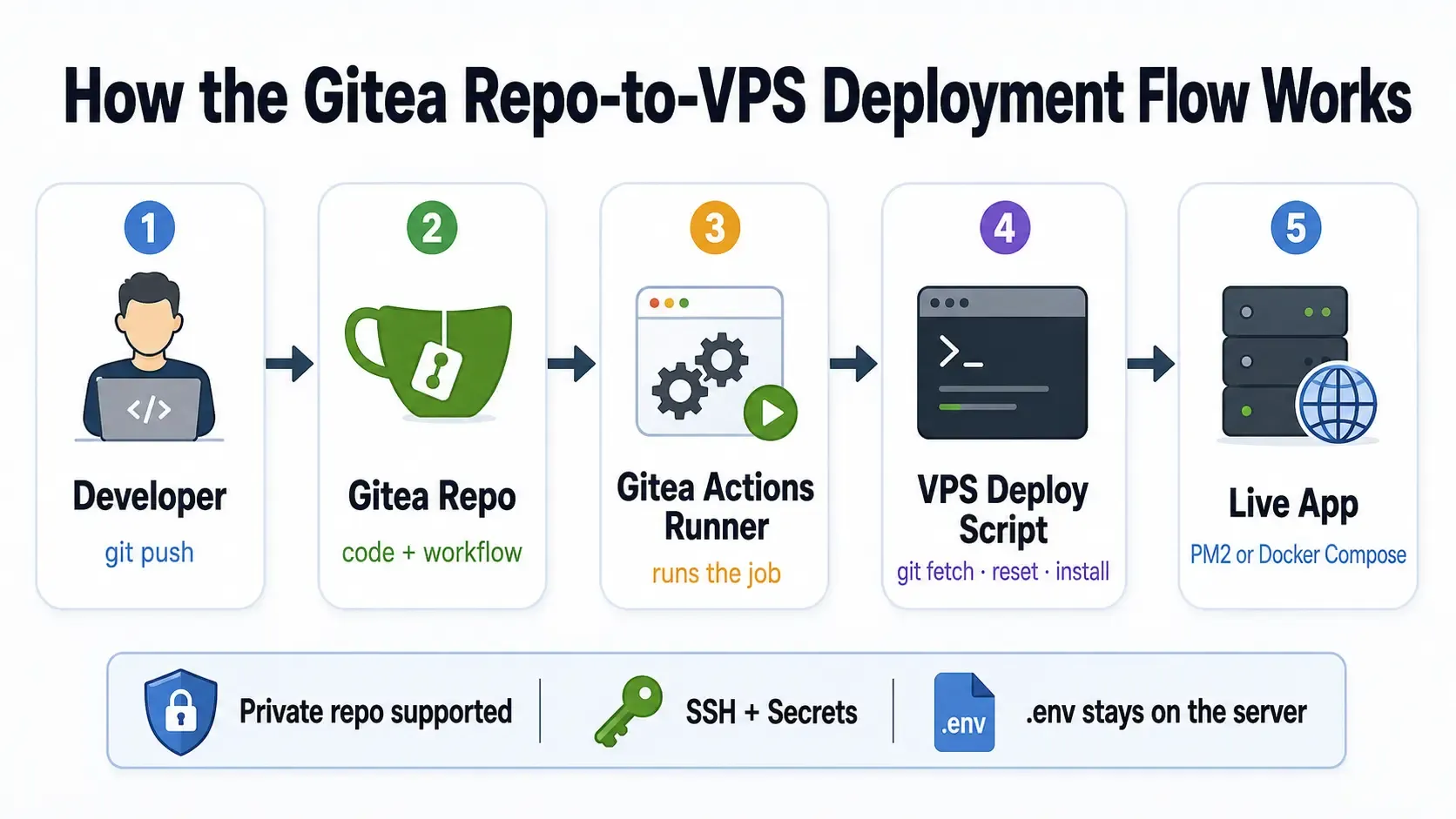
Developer laptop
    ↓ git push
Self-hosted Gitea repo
    ↓ Gitea Actions
Gitea runner
    ↓ SSH
VPS deploy script
    ↓
PM2 or Docker Compose restarts the app
There are two deployment styles I’ll cover:
- PM2 deployment — good for Node.js apps already managed by PM2.
- Docker Compose deployment — good for containerised apps in any language.
The main idea is the same for both:
git fetch origin main
git reset --hard origin/main
# install/build/restart app
The Gitea Action itself does not need to know the full details of your app. It only needs to SSH into the VPS and run a deploy script.
That keeps the workflow simple.
What You Need Before Starting
You need:
A VPS
A self-hosted Gitea instance
A repo in Gitea
SSH access to the VPS
A Linux user that owns the app folder
Git installed on the VPS
A working app already deployable manually
For PM2 deployment, you also need PM2 installed and already managing your app.
PM2 is a Node.js process manager that keeps your app running in the background. The PM2 docs describe it as a daemon process manager to help manage and keep applications online: https://pm2.keymetrics.io/docs/usage/quick-start/
For Docker deployment, you need Docker and Docker Compose installed on the VPS.
Docker Compose’s up command can create, start, and recreate containers, while -d runs them in the background: https://docs.docker.com/reference/cli/docker/compose/up/
The Important Concepts
Before writing any code, these are the moving parts:
Gitea Actions
This is the automation feature inside Gitea.
Runner
This is the worker that actually runs the job. Without a runner, your job will sit there waiting forever.
Workflow
This is a YAML file inside your repo, usually here:
.gitea/workflows/deploy.ymlSecrets
These are private values stored in Gitea, such as SSH keys, server usernames, hostnames, and tokens.
Gitea supports secrets at user, organisation, and repository level: https://docs.gitea.com/usage/actions/secrets
Deploy script
This is a shell script on your VPS that actually updates and restarts the app.
Deploy key or access token
This lets the VPS pull code from your private Gitea repo without asking for a username and password every time.
Repo-Level, Organisation-Level, or Instance-Level Runner?
Gitea runners can be scoped in different ways.
Repo-level runner
Available to one repo only.
Organisation-level runner
Available to all repos under one organisation or user.
Instance-level runner
Available to the whole Gitea instance.
For my case, an organisation-level runner made the most sense.
I did not want to set up a new runner every time I created a new app repo. But I also did not want every repo on the entire Gitea instance to automatically have access to the VPS runner.
So the balance was:
Organisation-level runnerThat way, all repos under the organisation can use the runner, but unrelated repos cannot.
Recommended VPS Folder Layout
Use a clean folder layout.
For example:
/var/www/example-app
/home/deploy/deploy-example-app.sh
Or, if your VPS user is called deployuser:
/home/deployuser/apps/example-app
/home/deployuser/deploy-example-app.sh
The important thing is that the Linux user running the deploy script should own the app folder.
For example:
sudo chown -R deployuser:deployuser /var/www/example-appKeep .env Safe
This is very important.
Your production .env file should live on the VPS, but it should not be committed to Git.
Add this to .gitignore:
.env
node_modules/
vendor/
dist/
Then check whether .env is tracked by Git:
git ls-files .envIf it prints nothing, good.
If it prints:
.envthen Git is tracking your .env, which is not what you want.
Remove it from Git tracking while keeping the actual file:
git rm --cached .env
echo ".env" >> .gitignore
git add .gitignore
git commit -m "Stop tracking env file"
git push origin main
Why does this matter?
Because the deploy script will use:
git reset --hard origin/mainThat command overwrites tracked files to match the repo.
But it does not delete untracked files like .env.
So this is safe:
git reset --hard origin/mainBut be careful with this:
git clean -fdThat can delete untracked files, including .env.
Unless you know exactly what you are doing, do not put git clean -fd in a production deploy script.
Prepare the VPS App Folder as a Git Repo
Your live app folder needs to be a Git working copy.
If you run this inside your app folder:
git remote -vand you get:
fatal: not a git repositorythen the folder is not connected to your Gitea repo yet.
A safe way to fix that is to back up the current folder, clone the repo fresh, and copy .env back.
Example:
cd /var/www

mv example-app example-app_backup

git clone https://git.example.com/org/example-app.git example-app

cp example-app_backup/.env example-app/.env

cd example-app
Then verify:
git remote -v
git fetch origin main
git ls-files .env
If git fetch origin main works without asking for a username and password, you are ready.
If it asks for username and password every time, you need to set up either SSH deploy keys or an HTTPS token.
Option A: Use an HTTPS Token for Git Pulls
If your Gitea SSH port is not easily reachable, HTTPS with a token is often simpler.
Create a Gitea access token in your Gitea account.
Then on the VPS, create:
nano ~/.netrcAdd:
machine git.example.com
login YOUR_GITEA_USERNAME
password YOUR_GITEA_TOKEN
Secure it:
chmod 600 ~/.netrcNow clone normally:
git clone https://git.example.com/org/example-app.git example-appAnd test:
cd example-app
git fetch origin main
If it works without prompting, your deploy script will also work.
This is the route I found easiest when SSH cloning became annoying because of custom SSH ports and firewall issues.
Option B: Use an SSH Deploy Key
You can also use an SSH deploy key.
On the VPS, as the deploy user:
ssh-keygen -t ed25519 -C "example-app deploy key"Show the public key:
cat ~/.ssh/id_ed25519.pubIn Gitea, add it to:
Repo → Settings → Deploy KeysThen use the SSH clone URL from Gitea, for example:
git clone ssh://[email protected]:2222/org/example-app.git example-appTest it:
git fetch origin mainA useful lesson: if SSH times out, that is usually not a private repo problem. Private repo problems usually give authentication errors. Timeouts usually mean wrong port, firewall, Docker port mapping, or DNS issues.
Create the VPS Deploy Script
Now create the script that will actually deploy your app.
Example path:
/home/deployuser/deploy-example-app.shCreate it:
nano /home/deployuser/deploy-example-app.shPM2 Deploy Script
Use this for a Node.js app managed by PM2:
#!/bin/bash
set -e

APP_DIR="/var/www/example-app"
PM2="/path/to/pm2"

cd "$APP_DIR"

echo "Deploy started at $(date)"

echo "Fetching latest code..."
git fetch origin main

echo "Resetting local files to match origin/main..."
git reset --hard origin/main

echo "Installing dependencies..."
npm install

echo "Restarting PM2 app..."
"$PM2" restart APP_NAME_OR_ID

echo "Saving PM2 process list..."
"$PM2" save

echo "Deploy completed at $(date)"
Make it executable:
chmod +x /home/deployuser/deploy-example-app.shTest it manually:
/home/deployuser/deploy-example-app.shDo not continue until this works manually.
Important PM2 Note: Use the Full PM2 Path
This was one of the issues I hit.
When I ran the deploy script manually, PM2 worked. But when the same script ran through Gitea Actions, it failed with:
pm2: command not foundThe reason is that automated SSH sessions do not always load the same shell environment as your normal terminal.
Find the full PM2 path:
which pm2You may get something like:
/usr/bin/pm2or:
/opt/nvm/versions/node/v22.17.0/bin/pm2Use that full path in the deploy script:
PM2="/opt/nvm/versions/node/v22.17.0/bin/pm2"Then call PM2 like this:
"$PM2" restart APP_NAME_OR_ID
"$PM2" save
This removes the guesswork.
PM2 also has startup support so that saved processes can survive server restarts: https://pm2.keymetrics.io/docs/usage/startup/
Docker Compose Deploy Script
For a Docker Compose app, the deploy script can look like this:
#!/bin/bash
set -e

APP_DIR="/var/www/example-app"

cd "$APP_DIR"

echo "Deploy started at $(date)"

echo "Fetching latest code..."
git fetch origin main

echo "Resetting local files to match origin/main..."
git reset --hard origin/main

echo "Pulling latest images if needed..."
docker compose pull || true

echo "Rebuilding and restarting containers..."
docker compose up -d --build

echo "Deploy completed at $(date)"
Make it executable:
chmod +x /home/deployuser/deploy-example-app.shTest manually:
/home/deployuser/deploy-example-app.shFor Docker Compose, I prefer:
docker compose up -d --buildrather than only:
docker compose restartWhy?
Because Docker’s docs note that docker compose restart does not apply changes to Compose configuration, such as environment variable changes. If the code, image, or Compose config changed, up -d --build is usually the safer deployment command: https://docs.docker.com/reference/cli/docker/compose/restart/
Install a Gitea Organisation-Level Runner
Now we need a runner.
If no runner is online, the Gitea job will sit in “waiting” forever.
In Gitea, go to your organisation or user area:
Organisation/User → Settings → Actions → RunnersCreate a new organisation-level runner and copy the registration token.
Now on the VPS, create a dedicated runner user:
sudo adduser --system --group --home /var/lib/gitea-runner act_runnerCreate folders:
sudo mkdir -p /var/lib/gitea-runner /etc/gitea-runner
sudo chown -R act_runner:act_runner /var/lib/gitea-runner /etc/gitea-runner
Download Gitea Runner.
For Linux AMD64:
cd /tmp

wget -O gitea-runner https://dl.gitea.com/gitea-runner/1.0.0/gitea-runner-1.0.0-linux-amd64

chmod +x gitea-runner

sudo mv gitea-runner /usr/local/bin/gitea-runner

/usr/local/bin/gitea-runner --version
If the download URL changes in future, check the official Gitea runner downloads page or documentation.
Generate config:
sudo -u act_runner /usr/local/bin/gitea-runner generate-config | sudo tee /etc/gitea-runner/config.yaml >/dev/null

sudo chown act_runner:act_runner /etc/gitea-runner/config.yaml
Register the runner:
sudo -u act_runner bashInside that shell:
cd /var/lib/gitea-runner

/usr/local/bin/gitea-runner register \
  --config /etc/gitea-runner/config.yaml \
  --instance https://git.example.com
It will ask for:
Runner token
Runner name
Runner labels
For name, use something descriptive:
example-org-vps-runnerFor labels, you can use:
ubuntu-latest:docker://docker.gitea.com/runner-images:ubuntu-latest,ubuntu-22.04:docker://docker.gitea.com/runner-images:ubuntu-22.04Or, if you want host-mode execution:
ubuntu-latest:host,ubuntu-22.04:host,linux:hostGitea’s runner docs explain that runners can run jobs in Docker mode or host mode. Docker mode gives isolation, while host mode runs directly on the host and gives no encapsulation: https://docs.gitea.com/usage/actions/act-runner
Exit the runner user shell:
exitCreate the Gitea Runner Systemd Service
Create the service:
sudo nano /etc/systemd/system/gitea-runner.servicePaste:
[Unit]
Description=Gitea Actions Runner
After=network.target

[Service]
User=act_runner
Group=act_runner
WorkingDirectory=/var/lib/gitea-runner
ExecStart=/usr/local/bin/gitea-runner daemon --config /etc/gitea-runner/config.yaml
Restart=always
RestartSec=5

[Install]
WantedBy=multi-user.target
Start it:
sudo systemctl daemon-reload
sudo systemctl enable gitea-runner
sudo systemctl restart gitea-runner
sudo systemctl status gitea-runner --no-pager
Check logs:
sudo journalctl -u gitea-runner -n 80 --no-pagerBack in Gitea, the runner should show as online.
If the Runner Fails with Docker Permission Denied
This is another issue I hit.
The service failed with an error like:
cannot ping the docker daemon
permission denied while trying to connect to the Docker daemon socket at unix:///var/run/docker.sock
If your runner is using Docker-based labels, the act_runner user needs permission to access Docker.
Fix:
sudo usermod -aG docker act_runner
sudo systemctl restart gitea-runner
sudo systemctl status gitea-runner --no-pager
Then check:
sudo journalctl -u gitea-runner -n 80 --no-pagerSecurity warning: membership in the Docker group is powerful. It can effectively give broad control over the host. Only let trusted repos and trusted users use this runner.
Gitea’s Actions FAQ also warns that malicious scripts can control a runner if untrusted workflows are allowed to run on it: https://docs.gitea.com/usage/actions/faq
Add SSH Secrets to the Gitea Repo
The workflow needs to SSH into the VPS and run the deploy script.
Create a new SSH key for this purpose:
ssh-keygen -t ed25519 -C "gitea-action-to-vps"Leave the passphrase empty if you want non-interactive deployment.
You will get:
gitea_action_to_vps
gitea_action_to_vps.pub
Add the public key to the VPS deploy user:
sudo -iu deployuser

mkdir -p ~/.ssh
nano ~/.ssh/authorized_keys
Paste the public key.
Fix permissions:
chmod 700 ~/.ssh
chmod 600 ~/.ssh/authorized_keys
Now test from wherever the private key is:
ssh -i gitea_action_to_vps deployuser@YOUR_VPS_HOSTIf it logs in without a password, good.
Now add these secrets in Gitea:
Repo or Organisation → Settings → Actions → SecretsAdd:
VPS_HOST = your.vps.hostname.or.ip
VPS_USER = deployuser
VPS_SSH_KEY = contents of the private key
For VPS_SSH_KEY, paste the whole private key:
-----BEGIN OPENSSH PRIVATE KEY-----
...
-----END OPENSSH PRIVATE KEY-----
Do not paste the .pub key as the secret. The .pub key goes into authorized_keys on the VPS. The private key goes into Gitea secrets.
Create the Gitea Actions Workflow
In your repo, create:
.gitea/workflows/deploy.ymlAdd:
name: Deploy App

on:
  push:
    branches:
      - main

jobs:
  deploy:
    runs-on: ubuntu-latest

    steps:
      - name: Prepare SSH key
        run: |
          mkdir -p ~/.ssh
          echo "${{ secrets.VPS_SSH_KEY }}" > ~/.ssh/vps_key
          chmod 600 ~/.ssh/vps_key
          ssh-keyscan -H "${{ secrets.VPS_HOST }}" >> ~/.ssh/known_hosts

      - name: Run deploy script on VPS
        run: |
          ssh -i ~/.ssh/vps_key "${{ secrets.VPS_USER }}@${{ secrets.VPS_HOST }}" \
            "/home/deployuser/deploy-example-app.sh"
Commit and push:
git add .gitea/workflows/deploy.yml
git commit -m "Add Gitea deployment workflow"
git push origin main
Now go to:
Repo → ActionsYou should see the workflow run.
What Happens When the Job Runs?
The job does this:
1. Creates a temporary SSH key file inside the runner job
2. Adds the VPS host to known_hosts
3. SSHs into the VPS
4. Runs the deploy script
5. Deploy script pulls latest code
6. Deploy script installs/builds/restarts the app
If you are using Docker-based runner labels, Gitea Runner will create a temporary Docker container, temporary volumes, and a temporary network for the job.
After the job finishes, it may remove them.
That is normal.
You may see logs like:
Cleaning up container for job deploy
Removed container: ...
docker volume rm ...
Cleaning up network for job deploy
Job succeeded
This is expected behaviour. It is cleaning up the temporary job environment, not your actual app.
Testing the Whole Setup
First test the deploy script manually:
/home/deployuser/deploy-example-app.shThen test SSH:
ssh -i gitea_action_to_vps deployuser@YOUR_VPS_HOST "/home/deployuser/deploy-example-app.sh"Then test Gitea Actions by pushing a small commit:
git commit --allow-empty -m "Test deployment"
git push origin main
Check:
Gitea → Repo → ActionsIf it succeeds, check your app:
For PM2:
pm2 list
pm2 logs APP_NAME_OR_ID --lines 50
For Docker:
docker compose ps
docker compose logs --tail=50
Troubleshooting: Problems I Hit
Job is stuck on “waiting”
This usually means one of these:
No runner is online
Runner is registered at the wrong scope
Workflow label does not match runner label
Check:
sudo systemctl status gitea-runner --no-pager
sudo journalctl -u gitea-runner -n 80 --no-pager
Also check in Gitea:
Settings → Actions → RunnersIf your workflow says:
runs-on: ubuntu-latestthen your runner must have a matching label for ubuntu-latest.
Runner says it registered but service fails
Check logs:
sudo journalctl -u gitea-runner -n 80 --no-pagerIf you see Docker permission errors:
cannot ping the docker daemon
permission denied while trying to connect to /var/run/docker.sock
fix it:
sudo usermod -aG docker act_runner
sudo systemctl restart gitea-runner
Git keeps asking for username and password
Use one of these:
SSH deploy key
HTTPS token with ~/.netrc
Git credential helper
For .netrc:
machine git.example.com
login YOUR_GITEA_USERNAME
password YOUR_GITEA_TOKEN
Then:
chmod 600 ~/.netrcTest:
git fetch origin mainSSH clone times out
Example:
ssh: connect to host git.example.com port 2222: Connection timed outThis is not usually a private repo issue.
It usually means:
Wrong SSH port
Firewall blocking the port
Docker port not published
DNS pointing somewhere unexpected
Private repo issues usually show authentication errors, not timeouts.
.env is at risk
Check:
git ls-files .envIf it returns .env, remove it from Git tracking:
git rm --cached .env
echo ".env" >> .gitignore
git add .gitignore
git commit -m "Stop tracking env file"
git push origin main
Avoid:
git clean -fdunless you understand exactly what it will delete.
pm2: command not found
Find PM2:
which pm2Use the full path in your deploy script:
PM2="/opt/nvm/versions/node/v22.17.0/bin/pm2"

"$PM2" restart APP_NAME_OR_ID
"$PM2" save
This is especially important when the deploy script runs through SSH from an automated job.
npm install works, but app does not restart
Test PM2 manually:
pm2 restart APP_NAME_OR_IDIf that works manually but not inside the deploy script, use the full PM2 path.
If the PM2 app ID changes often, use the app name instead of the numeric ID.
For example:
pm2 restart example-appis usually more stable than:
pm2 restart 4PM2 or Docker Compose?
Use PM2 if:
Your app is a simple Node.js app
You already use PM2
You want a quick and direct deployment
You do not need full containerisation
Use Docker Compose if:
Your app has multiple services
You want predictable containers
You deploy apps in different languages
You need database/cache/app orchestration
You want the same runtime structure everywhere
PM2 is simple and effective for Node apps.
Docker Compose is better when your app is more than one process or you want a more portable deployment setup.
Security Notes
A few things are worth taking seriously:
Do not commit .env
Do not paste private keys into code
Use Gitea secrets
Use a dedicated deploy user
Do not let untrusted repos use your runner
Prefer org-level runner over instance-level if only one org needs deployment
Avoid git clean -fd in production folders
Keep runner logs clean of secrets
If you add the runner user to the Docker group, understand that this is powerful. A workflow running on that runner can potentially do a lot on the host.
So only allow trusted repos and trusted people to use that runner.
Final Checklist
Before you call it done, confirm:
Your app folder is a Git repo
The VPS can git fetch without asking for username/password
.env is not tracked by Git
The deploy script works manually
PM2 or Docker restart works manually
The runner is online in Gitea
The workflow runs-on label matches the runner label
Gitea secrets are configured
The workflow can SSH into the VPS
A push to main triggers deployment
The job ends with “Job succeeded”
If all of those are true, your CI/CD setup is working.
Final Thoughts
This setup sounds complicated at first, but the finished version is actually simple:
Gitea Action
→ SSH into VPS
→ run deploy script
That is it.
The runner does not need to know all the details of your app. Your workflow does not need to become a giant YAML monster. Keep the real deployment logic in a script on the VPS, test that script manually, then let Gitea trigger it automatically.
Once I got the runner online, fixed Docker permissions, used proper secrets, and used the full PM2 path, everything worked smoothly.
Now, pushing to the Gitea repo automatically updates the VPS app.
And honestly, that is exactly how it should be.
Comments (0)
No comments yet. Be the first to share your thoughts!
Leave a Comment
Your email address will not be published. Required fields are marked *